FIELD NOTE // POWER AUTOMATE
Zero-Click Desk Reservation
Never Forget Your Desk Again
Let’s face it: in a hybrid work world, the most tedious part of going into the office isn’t the commute—it’s the desk-booking bureaucracy.
We’ve all been there: you park the car, walk into the building, and suddenly realize you’re “homeless” for the day because you forgot to log into that clunky app before the good spots were gone.
To kill this frustration, I built a Zero-Click Desk Reservation system. No apps to open, no buttons to click—just pure, seamless automation.
By bridging the gap between iOS Shortcuts and Power Automate, I’ve automated the entire check-in process based on two simple criteria:
- Geofencing: The system triggers the moment I’m within 200 meters of the office.
- Time-Gating: It only activates between 8:00 AM and 5:00 PM to avoid accidental bookings.
The result? My desk is secured via API before I’ve even stepped out of the car.
Bypassing the App with Email Triggers
In this case, the tool used to book the desk is a SharePoint list exposed via a Power BI application. While Power BI is great for visualization, using it as an input interface every morning is far from efficient. It’s slow to load and adds unnecessary friction to a simple task.
To streamline this, I decided to bypass the UI entirely using a lightweight, three-step relay:
- The Trigger (iOS Shortcuts): My iPhone monitors my location. When I hit the geofence, it automatically sends a pre-formatted email to my corporate account.
- The Bridge: By sending the email from my personal address to my work address, I create a secure, verifiable “ping” that Power Automate can instantly recognize.
- The Action (Power Automate): A cloud flow intercepts the email, validates the sender, and uses the SharePoint connector to inject my reservation data and the current date directly into the list.
This method turns a 1 minute daily task, into a 0-second background process, ensuring my spot is reserved without ever interacting with the Power BI interface.
⚠️
I need to use a personal email address, because company policies blocks the use of Outlook in iPhone Shortcuts.
⚠️
I used email triggers, because a Power Automate Webhook is available only with Premium subscription.
The Flow
The Trigger
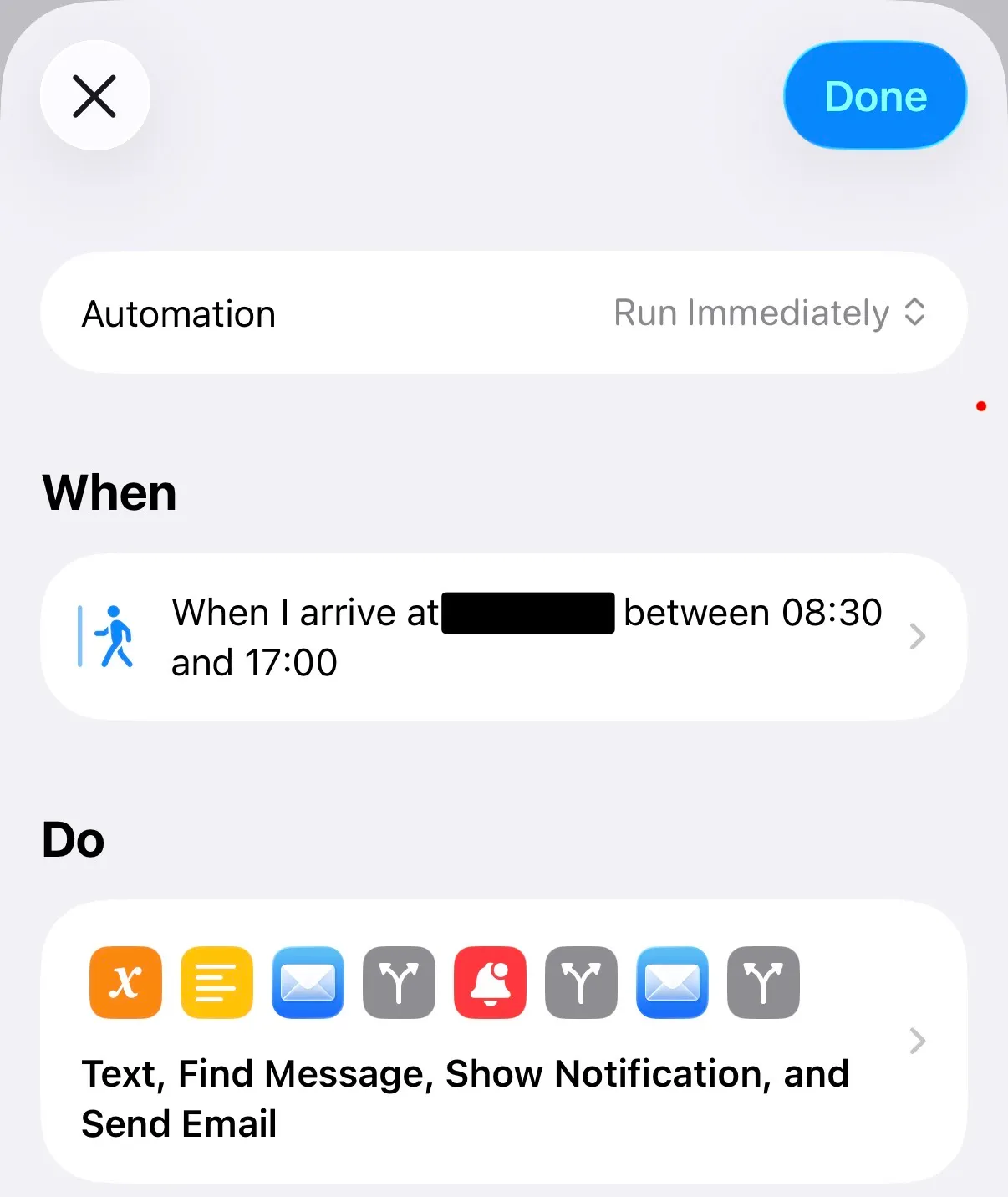
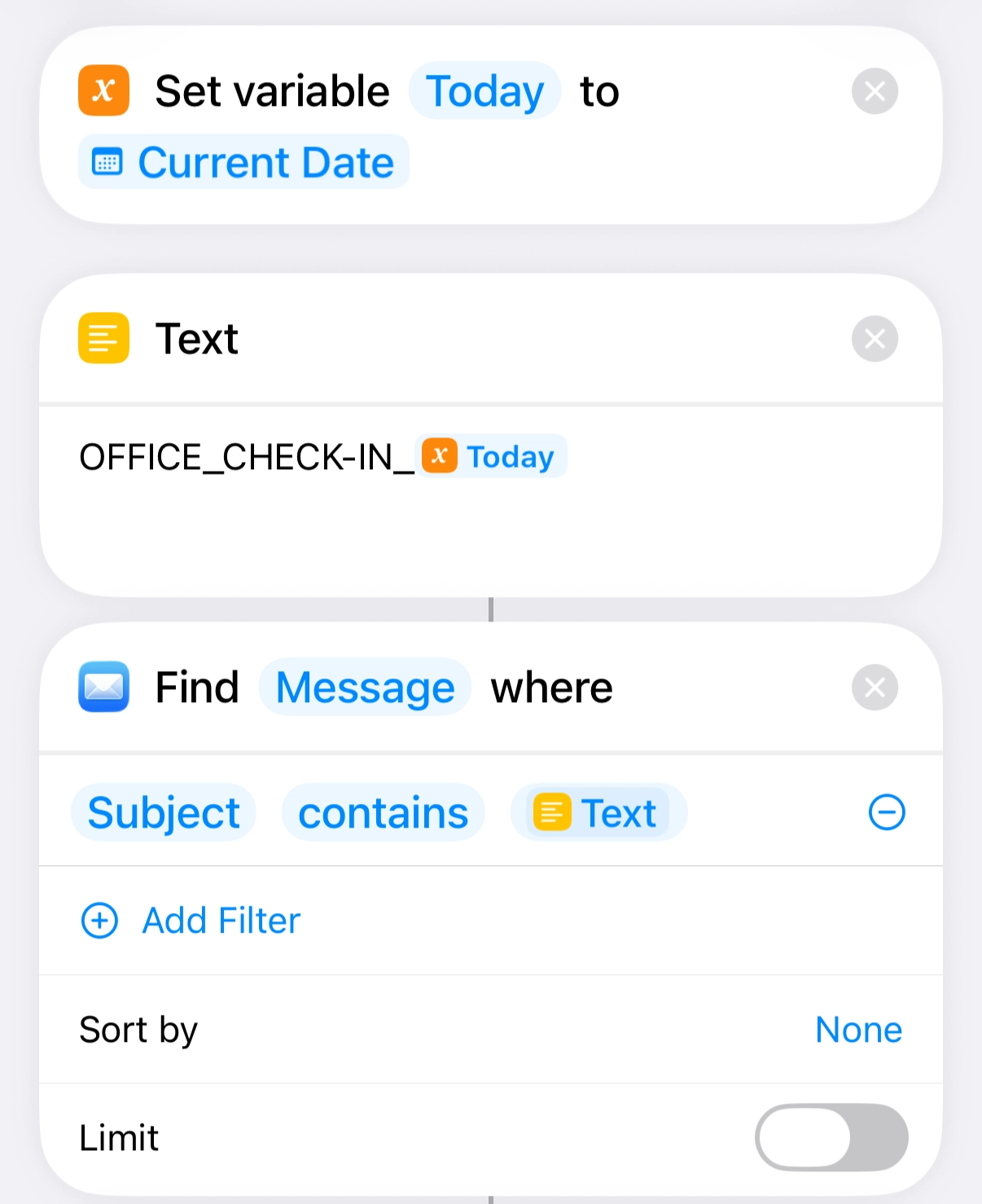
The process begins on the iPhone. Using the Shortcuts app, I configured a location-based automation that monitors when I arrive within a 200m radius of my office. To ensure it only triggers during work hours, the trigger is gated between 8:30 AM and 5:00 PM.
Once triggered, the shortcut performs two quick actions:
- It captures the current date as a variable.
- It generates a text string using the specific format:
OFFICE_CHECK-IN_13-04-2026.
Finally, the flow looks for any email within my personal account that matches that specific subject line.
The Bridge
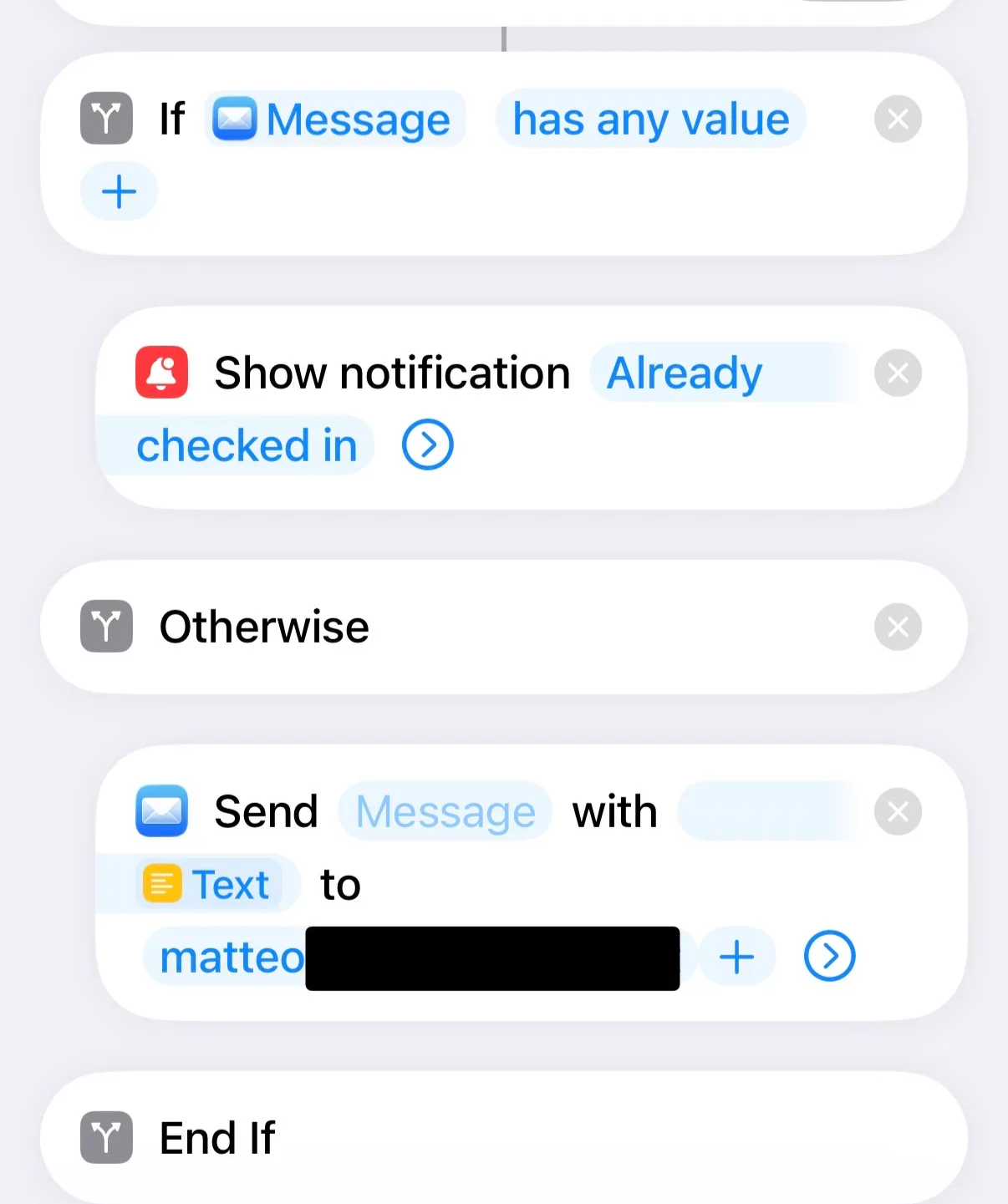
If a match is found: It means I have entered or exited the 200m geofence multiple times (for example, leaving for a lunch break and returning). In this case, the automation stops and simply displays a notification to avoid redundant desk entries.
If no match is found: This confirms it is my first arrival of the day. The shortcut then proceeds to send the trigger email to my corporate account to finalize the reservation.
The Action
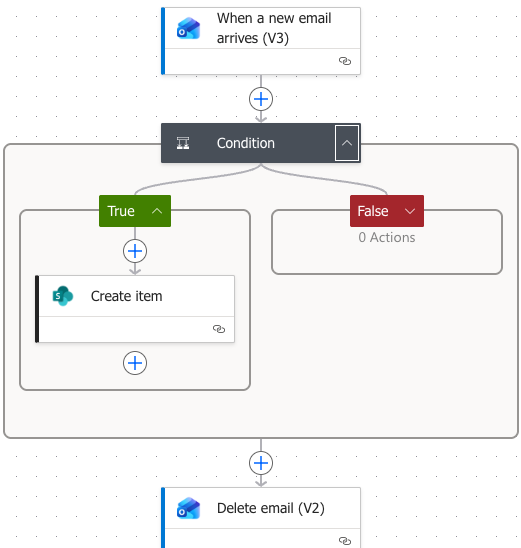
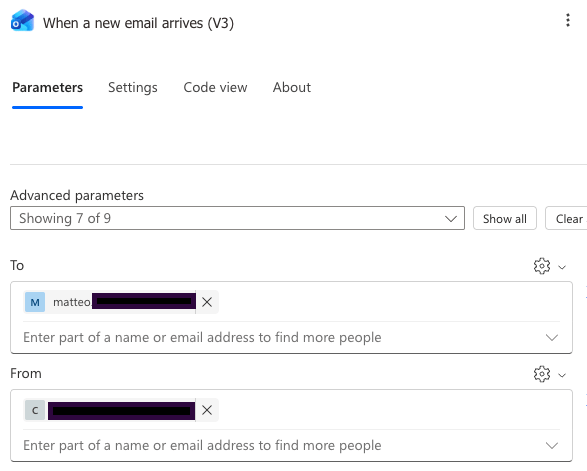
Once the email is received, the Power Automate flow performs a series of security and logic checks to ensure the booking is legitimate:
Sender Verification: The flow first verifies that the email was sent from my personal address directly to my corporate account, ensuring there are no CCs or external recipients involved.
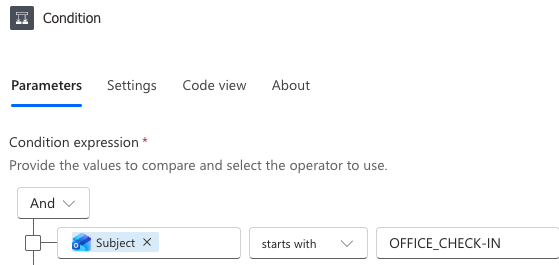
Subject Filtering: It then checks if the subject line starts with the specific string: OFFICE_CHECK-IN.
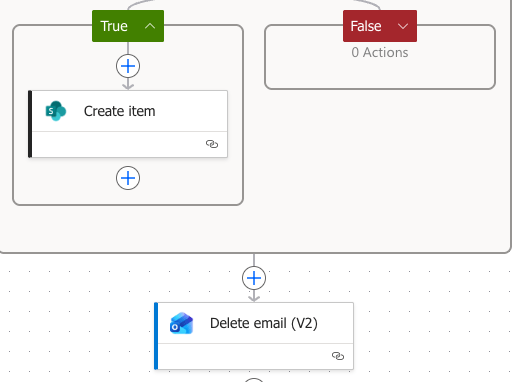
The Action: If the subject matches, the flow automatically creates a new item in the SharePoint List with the reservation details. If the subject doesn’t match, the flow terminates without taking any action.
Cleanup: Finally, if the desk is successfully booked, the flow deletes the trigger email to keep my inbox clean and clutter-free.
Conclusion
This is a simple yet powerful automation that eliminates the friction of manual check-ins. By moving the logic to the background, I no longer need to open the Power BI app or even think about my reservation—it just happens.
While this setup specifically targets a SharePoint-based system, it is highly adaptable. You could easily modify the logic to:
- Book in advance: Trigger the flow a day early based on your schedule.
- Sync with Outlook: Check your calendar first to see if you are actually working from the office that day.
- Expand to other systems: Adapt the “Email-to-SharePoint” relay to work with almost any desk-booking software.
The possibilities are infinite. Once you start treating your physical location as a trigger, you realize just how many daily chores can be handed over to automation.