FIELD NOTE // POWER AUTOMATE
Smart Out of Office
The Hook
It’s 6:00 PM. You’re already thinking that first drink with your colleagues when it hits you: you forgot to set your Out of Office reply. Are you really going to take your laptop just to toggle a switch?
Spoiler: You don’t have to. I solved this by automating the auto-reply trigger based on calendar events. It’s completely free and built entirely within Power Automate.
Set it and Forget it
Every day at 4:00 PM, the flow triggers and scans your calendar for the following day. It looks specifically for keywords like “Vacation” or “Sick”. If a match is found, the automation doesn’t just stop there—it performs a deep scan 30 days into the future to identify any consecutive days of the same event.
This ensures that whether you are taking a long weekend or a two-week holiday, the system accurately identifies your Return Date.
Once the timeframe is found, the flow automatically updates your Office 365 settings scheduling your custom Auto-Reply to activate in the timeframe you’re out.
By the time you’re heading out for that 6:00 PM drink, Power Automate has already handled the bureaucracy for you. No manual toggles, no “Oh no” moments—just a silent, automated transition into your time off.
The Flow
1. The Trigger
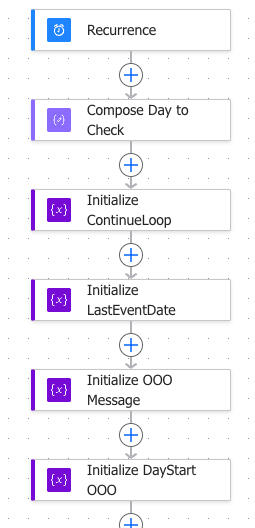
The flow is set to a Recurrence trigger. It starts every day at 4:00 PM.
First, we create a variable for Tomorrow’s Date. I added a condition here: if today is Friday, the flow ignores Saturday / Sunday and sets the variable to Monday.
Then just a variable Continue Loop initialization to True
Set an End Date variable. By default, it starts at 6:00 PM tomorrow (or Monday, if it’s Friday). If the loop finds that you are out for multiple days, this variable will automatically update to the 9:00 AM of the day you actually return.
Finally, we initialize a variable for the OOO Message and the Day Start OOO
2. Check tomorrow’s events
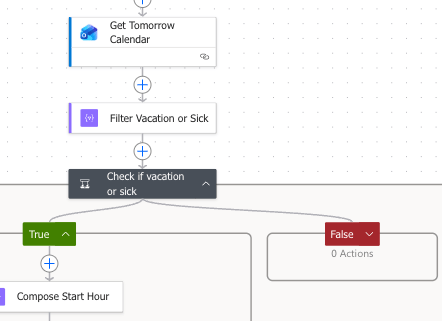
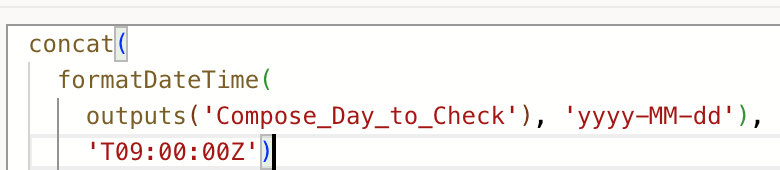
The flow retrieves tomorrow events based on the date calculated at step 1, formatted to match 9-18 events.

A filter is applied to take only the right events:
- Subject contains “Vacation” or “Sick”
- Organizer is an exact email
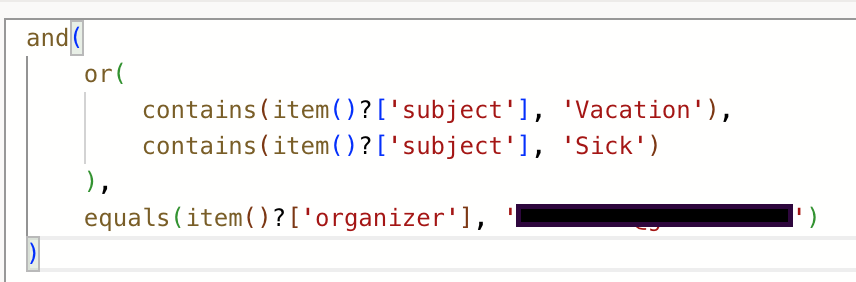
If no valid events are found the flow terminates, if criteria are matched it continue with the logic.
3. Half Day Case
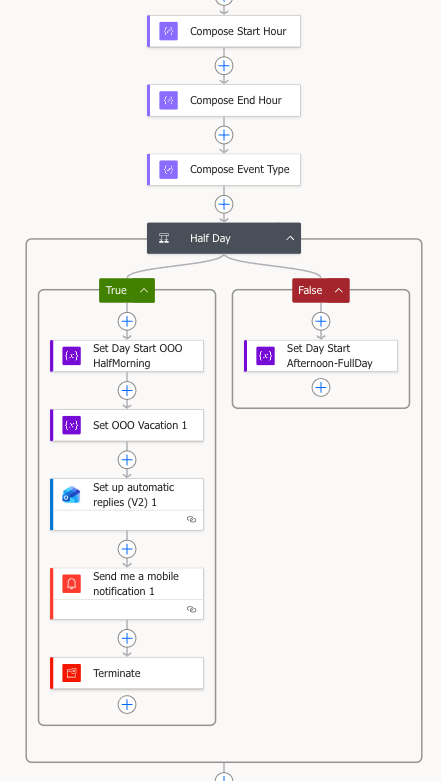
Once a match is found, the flow extracts the key details to build your schedule, it initializes three specific variables: Start Hour, End Hour, and Event Type (distinguishing between Vacation and Sick).
To make the auto-reply even smarter, the flow runs a time-check:
- Morning Absence: If the event starts before 12:00 PM and ends before 3:00 PM, it’s flagged as a “Morning Only” absence. and will be handled.
- Full Day/Evening: If these conditions aren’t met, the system treats it as a full-day or afternoon absence, set a variable and go ahead with the logic at the point 4.
Morning Absence: If the absence is only in the morning timeframe, the flow:
- Set the “Start” of the OOO at today 6.00 PM
- set the OOO Message and set the Autoreply with start-end taken from the event
- send a notification to the mobile phone that “Half Out Of Office has been set”
- Terminate the flow
Full Day/Evening Absence: In this case there are 2 ways:
- Full Day: Set the “Start” of OOO at today 6.00 PM
- Evenging: Set the “Start” of the OOO at the event start
4. Evening/Full Day flow
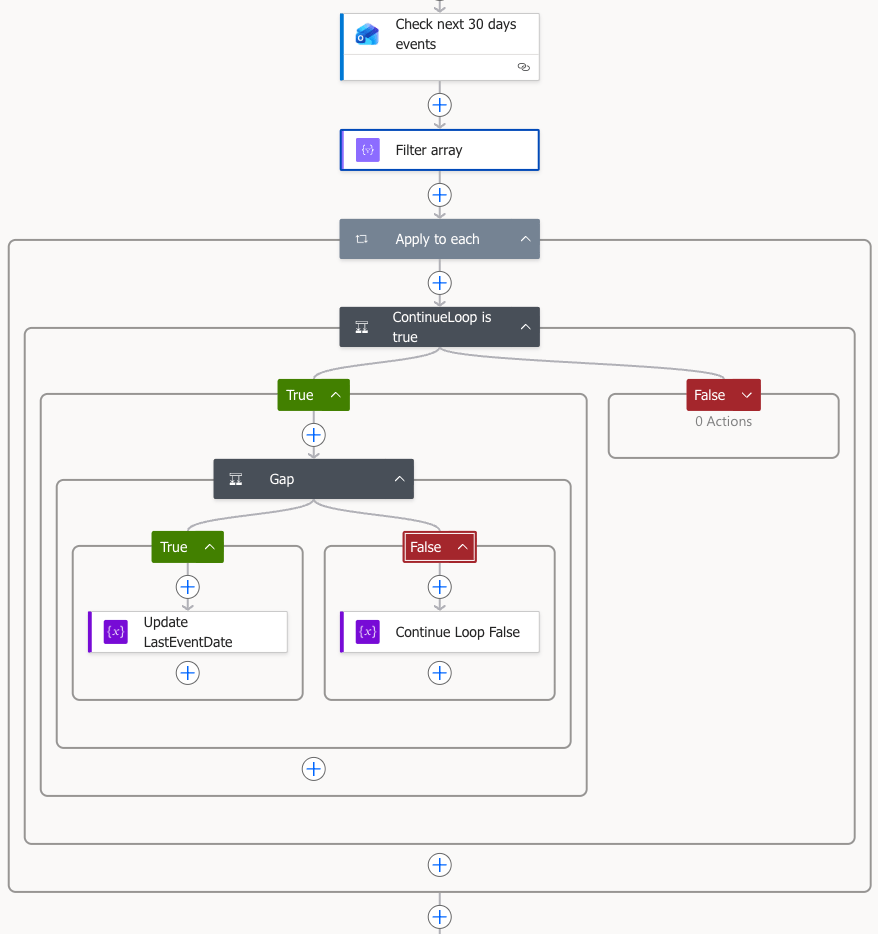
If the system identifies a full-day or evening absence, it expands its search to ensure your entire holiday is covered:
- The flow exports a list of all calendar events for the next 30 days.
- It isolates only those tagged as “Vacation” or “Sick”, ignoring any other meetings or noise.
This is the “brain” of the duration check. The flow runs a recursive loop to find consecutive days off:
- Match Found: If a subsequent “Vacation/Sick” event is detected, the flow stays active and updates the
**LastEventDate**variable with the end-time of that latest event. - Break Condition: If no consecutive match is found, the
**ContinueLoop**variable is set to False. This tells the system that your vacation has ended, and it exits the loop.
5. Set AutoReply
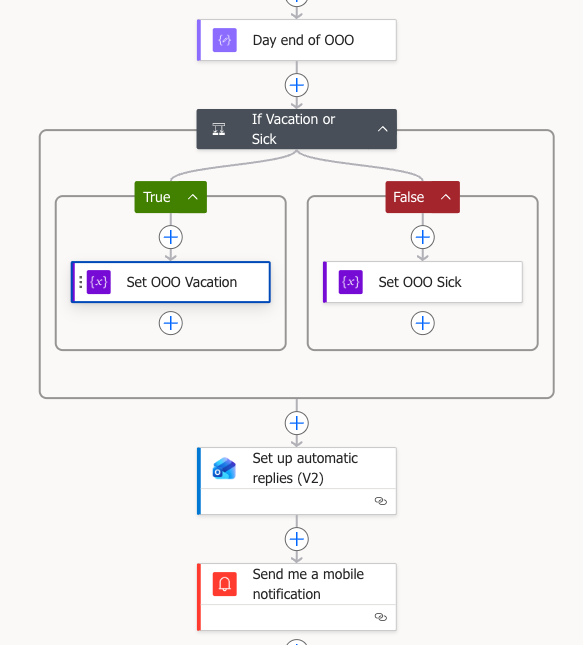
Once the flow has identified the Start Date and the Last Day of Vacation/Sick, it performs one final check to ensure the return time is realistic:
- If your Last Day ends on a Friday, the system automatically sets your return to Monday at 9:00 AM.
- For any other day, the return is set to the next day at 9:00 AM. This prevents the auto-reply from telling people you are back at midnight!
The flow then distinguishes between “Vacation” and “Sick” to select the appropriate message. It dynamically injects the calculated return date into a custom template, ensuring every recipient knows exactly when to expect you back.
In the final step, the automation:
- Sets the Auto-Reply: It pushes the schedule and the custom message directly to your Office 365 account.
- Mobile Notification: It sends a push notification to your phone, confirming that your Out-of-Office is active and letting you know you can officially start your break.
Final Thoughts:
This is, of course, my specific use case—tailored to how I manage my calendar and my vacations. But the beauty of Power Automate is its modularity.
You can easily customize this flow to fit your own workflow:
- Alternative Scenarios: Adapt it for “Deep Work” blocks, training days, or external conferences.
- Custom Messaging: Create different auto-replies based on the “Event Type” or even who the sender is.
- Integrations: Instead of a simple phone notification, you could have the flow post a message to a Slack or Teams channel to let your whole squad know you’re officially off the grid.
The logic is the foundation; how you build the house is up to you. Happy automating!
And now… let’s go get that drink! 😎