
FIELD NOTE // POWER AUTOMATE
Outlook with Superpowers: The Self-Cleaning Trash
The Limit for a clutter-free life
In my quest to automate as many repetitive tasks as possible, I have spent years perfecting a system of Outlook rules. My goal was simple: automatically delete incoming “noise” so I could focus on what truly matters, but i hit a wall!
The problem is that Outlook rules are fundamentally limited. They can move an email to the Trash, but they cannot permanently destroy it or manage its lifecycle. Over time, this creates a massive digital backlog. Without realizing it, my Trash folder grew into a monster of 5,000, 10,000, even 15,000 emails.
This isn’t just about being untidy. This massive accumulation leads to:
- Performance degradation: Outlook starts to lag and stutter under the weight of thousands of indexed items.
- The “Hanging” effect: Trying to manually empty a Trash folder that has been neglected for years often causes the client to freeze or crash.
Essentially, by using standard rules, I wasn’t solving the problem—I was just moving it to a different room.
Beyond the Rules: The Power Automate Solution
To break through this limit, I decided to stop relying on Outlook’s native filters and built a dedicated automation using Power Automate.
Unlike standard rules, which only trigger the moment an email arrives, Power Automate allows us to create a “Maintenance Cycle.” Instead of a reactive move, we can now implement a proactive purge.
I designed a flow that scans the Trash folder, identifies the “dead wood” based on the filters i’ve set, and handles the final deletion without me ever having to click “Empty Folder” again.
The Flow
The logic is simple and effective. Instead of a complex, real-time system, I built a “silent janitor” that operates while I sleep. Here is how the automation works:
- The Trigger: Every night at 1:00 AM, the flow wakes up to perform its duties.
- The Pull: It extracts the last 6,000 emails from the Trash folder—a volume high enough to clear the backlog.
- The Logic: It applies a custom filter (e.g., age or sender). If a message matches the criteria, the flow triggers a permanent deletion.
- The Report: To keep everything under control, the flow sends me a notification in both cases—success or failure—so I always know the status of my digital cleanup.
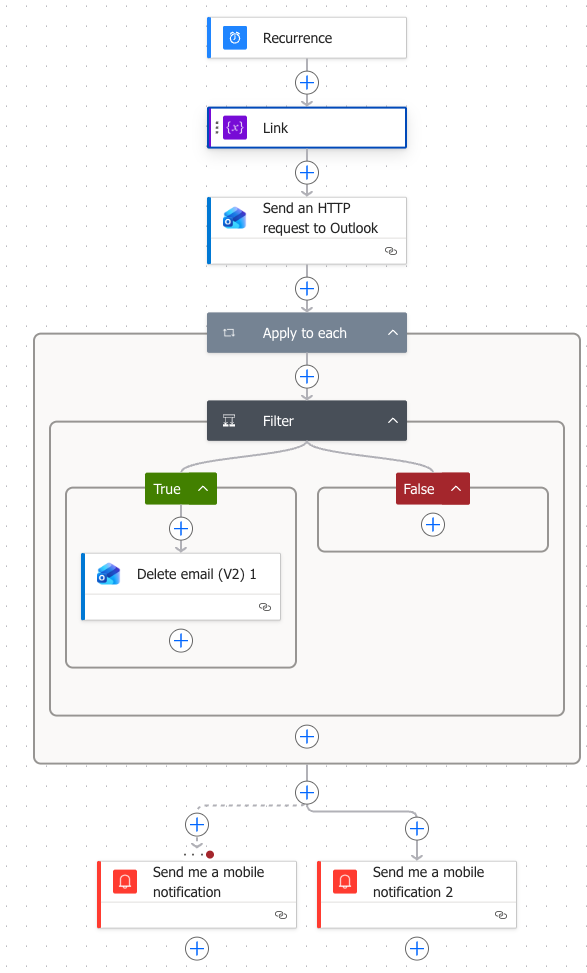
To bypass the standard limitations of Power Automate—specifically the 250-item cap of the “Get emails” action—I implemented a more robust solution using the Microsoft Graph API.
Every night at 1:00 AM, the flow triggers automatically.
Instead of the default action, I use an HTTP request to Outlook. By calling the Graph API endpoint: https://graph.microsoft.com/v1.0/me/mailFolders/deleteditems/messages?$select=id,from,subject&$top=6000 I can extract up to 6,000 emails in a single go, specifically selecting only the id, from, and subject to keep the payload light and fast.
I apply a filter to each email on from address toLower(item()?['from']?['emailAddress']?['address']) or on a subject toLower(item()?['subject']) matching agains the sender email or the subject i want.
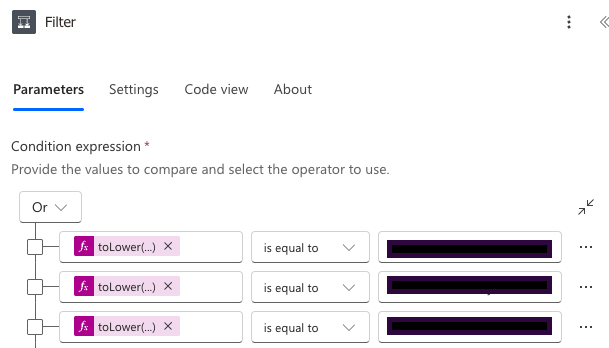
If it match the flow will delete that email using the Action “Delete Email” and the id of that email.
At the end of the flow i will receive a notification with “Mail Deleted” if the flow is success, or “Issue deleting email, flow failed” if it fails.
Goodbye Email Noise
By combining my existing Outlook rules with this Power Automate flow, I’ve effectively given my inbox a set of superpowers.
The standard rules handle the sorting, and the Graph API takes care of the final disposal. Working together, they’ve eliminated the “digital noise” that used to slow down both my mail client and my workflow.
Now, my trash handles itself.