
FIELD NOTE // POWER AUTOMATE
Refining the Agenda
The “Corporate” Constraint
In a corporate environment, you don’t always choose the tools—and you certainly don’t choose the naming conventions. This project is about how I used Power Automate to adapt a rigid corporate tool to my personal productivity needs, creating a seamless experience without interfering with the company’s standard processes.
The Problem: The “Task-ID” Blindness
In the company i work for, we use a tool that allows Project Managers to assign tasks to Engineers. Every assignment triggers a calendar invitation sent directly to the chosen person. The naming convention looks something like this:
TASK12345 - Confirmed Customer Project - Client NameTASK12345 - Provisional Training Received
The Issue? On my iPhone Outlook widget, every single entry was truncated to “TASK12345 - Conf…“.
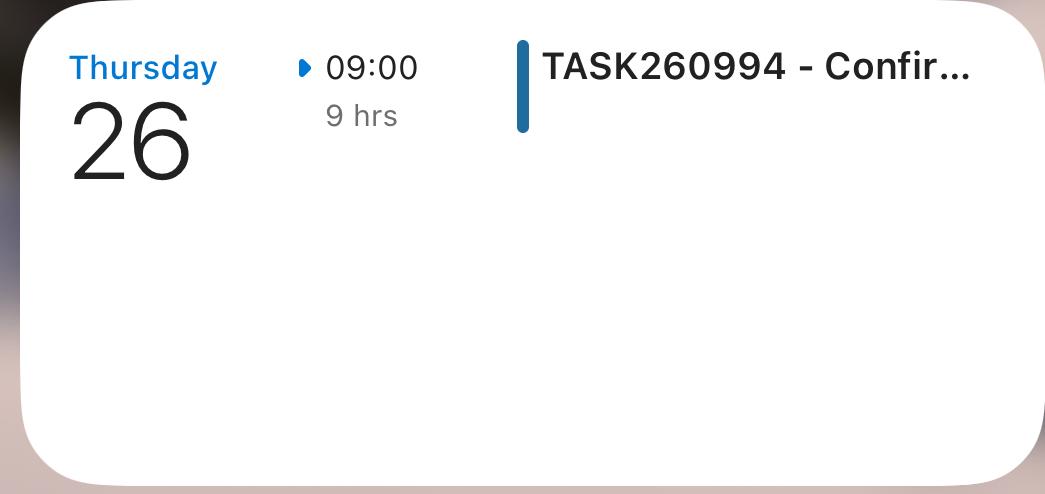
I couldn’t tell at a glance if I was heading into a client meeting or a training session without manually opening the app. To be honest, it was a purely aesthetic issue, but it was a constant annoyance for me.
The Constraint
Obviously, I couldn’t ask the company to change the source tool just for my aesthetic preference, and manually renaming every event was out of the question since they are constantly added, deleted, or updated. I needed a middleware that could adapt the calendar to my needs.
The Solution: A Power Automate Flow ⚡
Instead of fighting the system, I built a background ‘Adapter’ using Microsoft Power Automate. The logic is simple: whenever an event is added, updated, or deleted, it triggers the Flow, which then automatically adapts the name of the calendar entry.
The change affects only my personal calendar and no other tools, so the entire corporate ecosystem remains untouched. It’s a clean, zero-impact solution!
The Logic
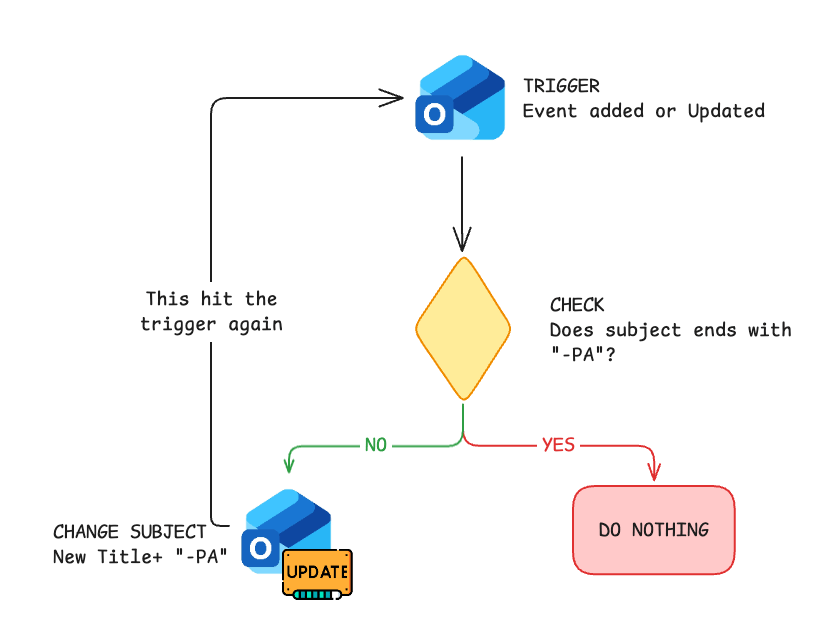
The logic behind the flow is straightforward: every time an event is added or updated in my calendar, it triggers the flow. The first thing it does is check if the subject ends with ‘-PA’ (my custom ‘PowerAutomate’ tag).
If the tag is missing, the flow knows this is the first time it’s being triggered and proceeds to rename the event. However, since the flow itself ‘updates’ the calendar to change the name, this would normally trigger the flow again, creating an infinite loop.
To prevent this, I use the ‘-PA’ suffix as a tag. By adding it to the new subject, the flow can run a simple ‘IF’ condition during the next trigger: if it sees the tag, it knows the job is already done and stops immediately. It’s a simple yet effective ‘state machine’ logic.
The Flow
1. The trigger
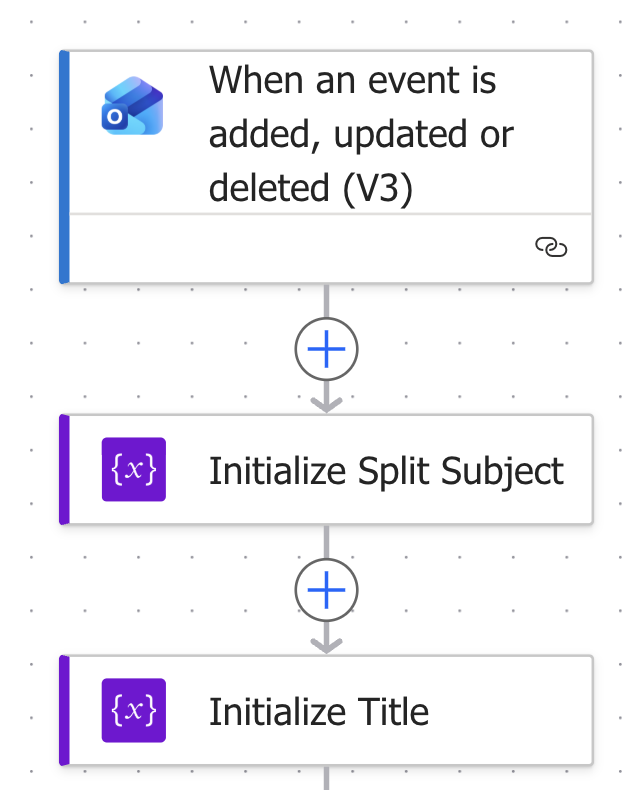
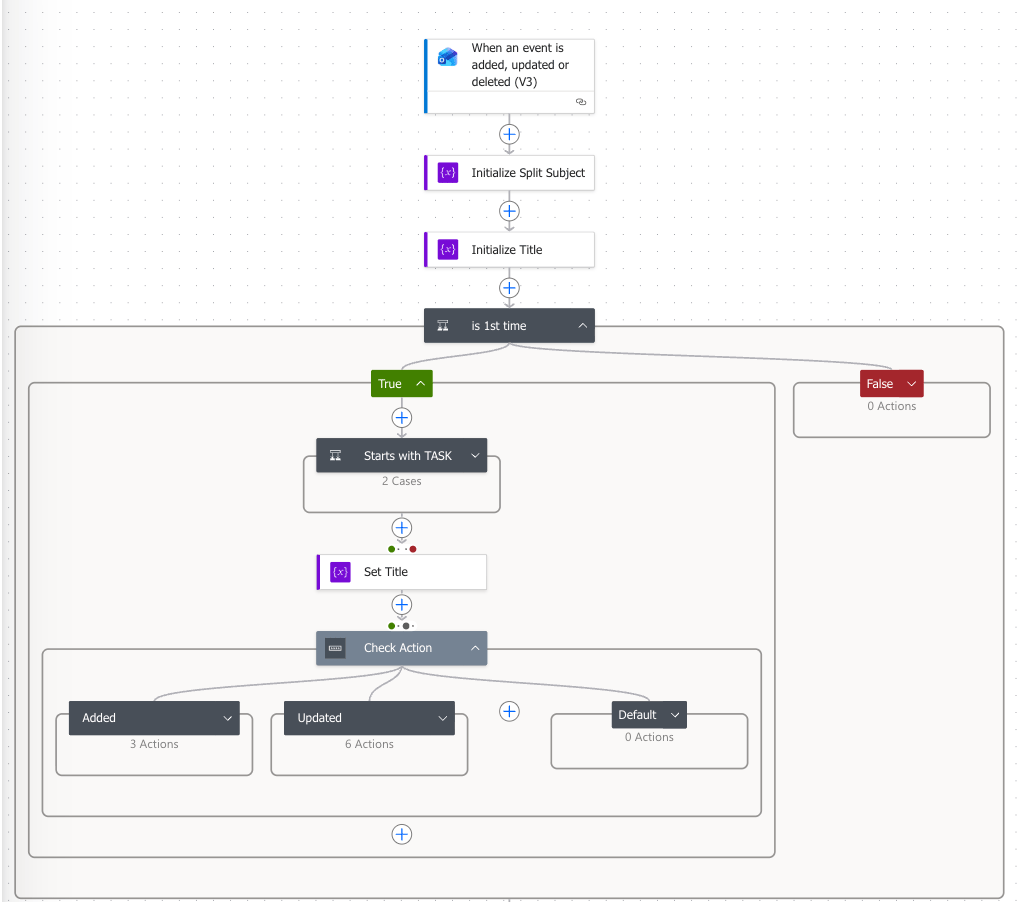
The flow begins with the Calendar Trigger, followed by the initialization of two key variables:
- Initialize
**Split_Subject**: An Array variable used to store the event subject after it has been split by the"-"delimiter. - IInitialize
**Title**: A String variable that will hold the newly constructed title.
These variables act as the foundation for the data manipulation that follows.
2. IF Statement
Next, the flow hits an IF Condition to check if the subject ends with the ‘-PA’ tag.
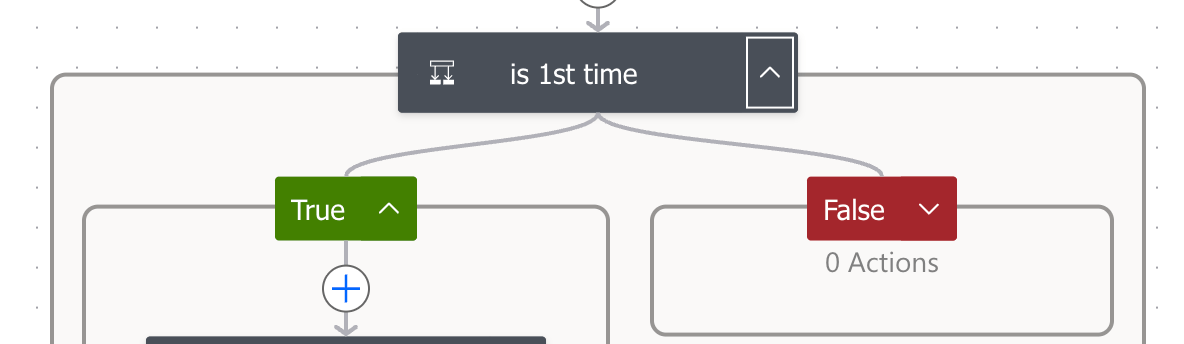
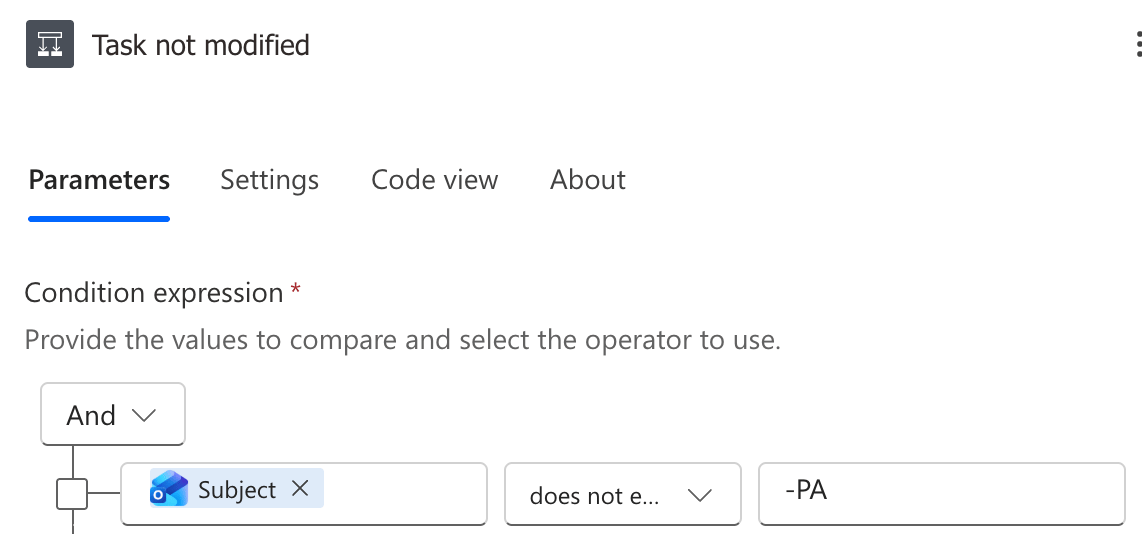
- If False (Subject ends with ‘-PA’): The flow recognizes its own ‘signature’ and terminates. It does nothing, preventing the infinite loop.
- If True (Subject does NOT end with ‘-PA’): The flow proceeds to transform the title. This is where the magic happens.
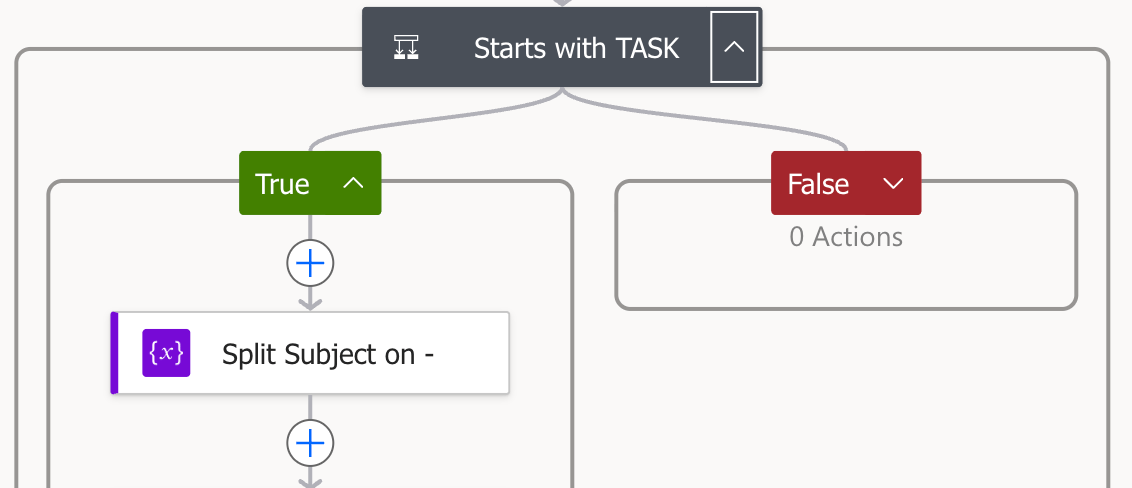
3. Starts with TASK?
Since the next step splits the subject line wherever it finds a '-', there was a risk of the flow failing or misinterpreting standard meeting invites (e.g., a customer sending an invite with a dash in the title).
To prevent this, I added a preliminary check to ensure the flow only targets actual Task IDs. This pre-validation ensures that the automation remains specific: it only transforms the corporate tasks I’ve targeted, while leaving standard calendar invites from customers or colleagues completely untouched.
4. Split Subject
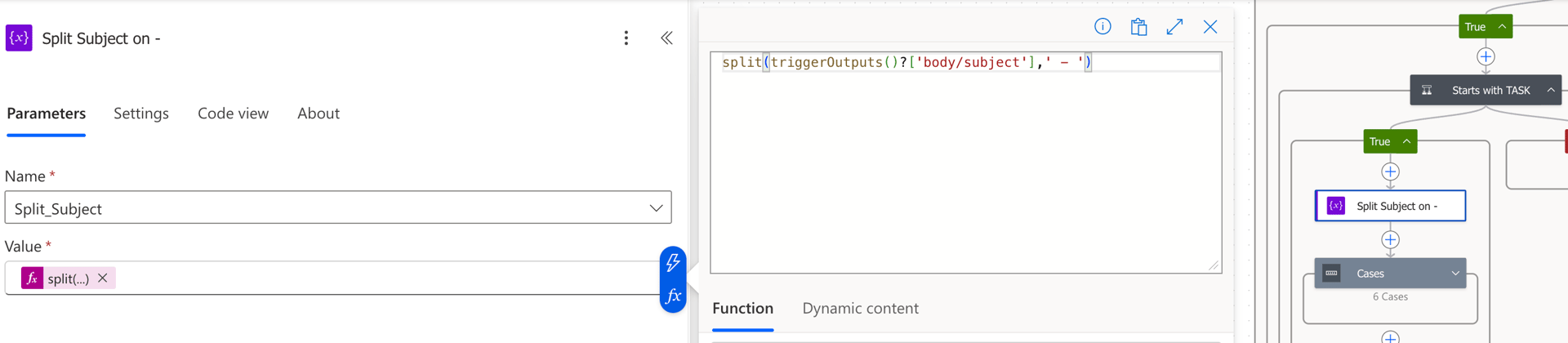
This step involves deconstructing the subject line by splitting it wherever a '-' delimiter is found.
Using the split() expression, the flow breaks the original string into an array of smaller segments. This allows me to isolate the Task ID from the actual project information, giving me the flexibility to reorder the components however I want.
5. Switch on cases
Once the subject is split, a Switch control is used to evaluate the 2nd element of the array (at index [1]).
For example, with a subject like TASK12345 - Confirmed Customer Project - Client Name, the array is structured as follows:
Array[0]: TASK12345
Array[1]: Confirmed Customer Project
Array[2]: Client Name
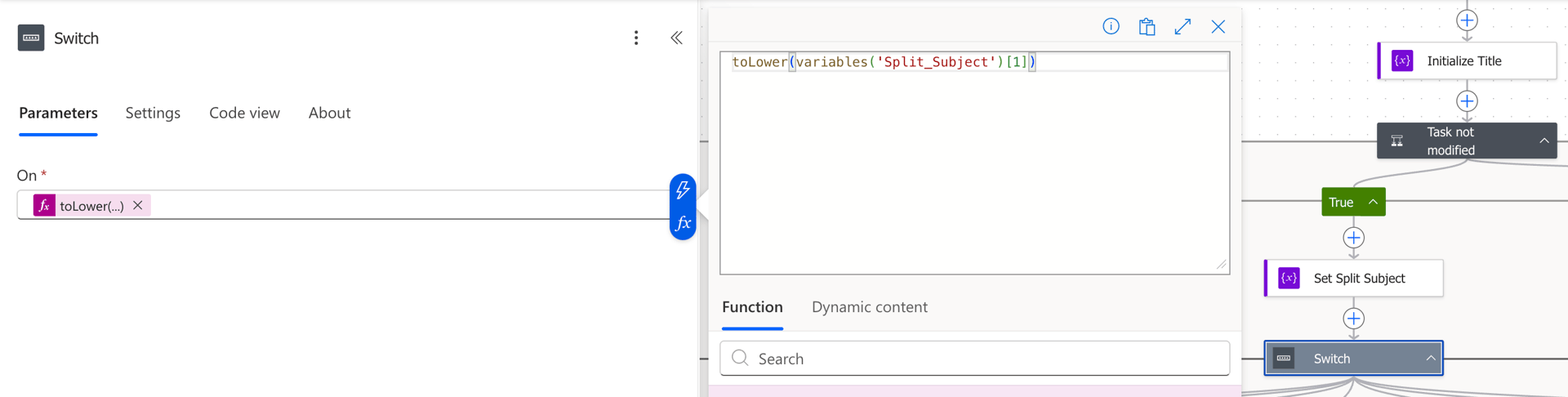
This approach allows me to dynamically adapt the title based on the event type. I can define a specific format for a Confirmed Customer Project and a completely different one for Provisional Training Received.
In each case, I reassemble the string to my liking and append the ‘-PA’ tag at the end. For example:
- Original:
TASK12345 - Confirmed Customer Project - Client Name - New Title:
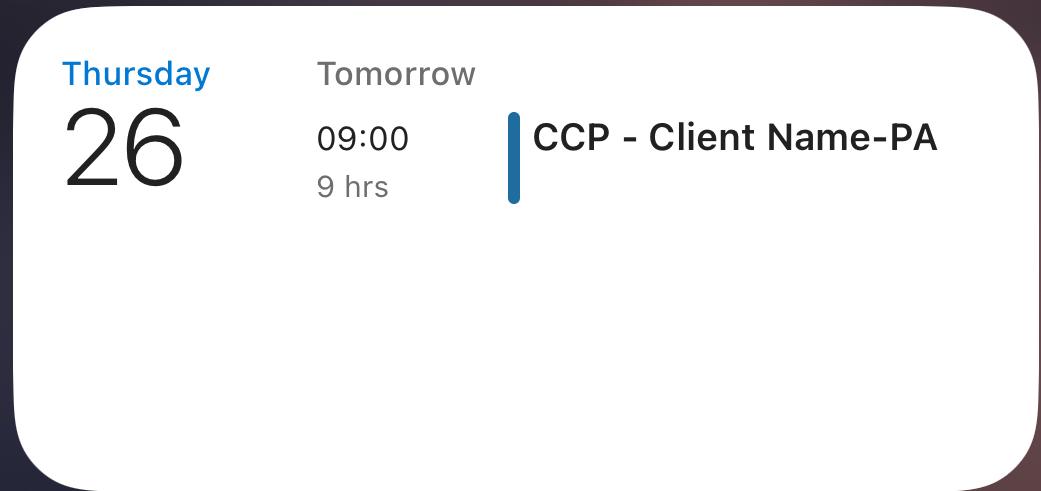
CCP - Client Name -PA
Finally, I included a Default Case in the Switch. This acts as a catch-all for any other tasks starting with ‘TASK’ that don’t fit the main categories. In those cases, the flow simply strips away the Task ID, keeping the calendar clean and readable no matter what.

6. All Exceptions
To ensure the flow is bulletproof, I implemented a fail-safe mechanism. For any meeting that doesn’t start with ‘TASK’—triggering a ‘False’ result at Step 3—or in the event of any processing error during Steps 4 or 5, a Default Set Title action is triggered. This fallback simply takes the original subject and appends the ‘-PA’ suffix, ensuring the flow completes successfully without losing any information.
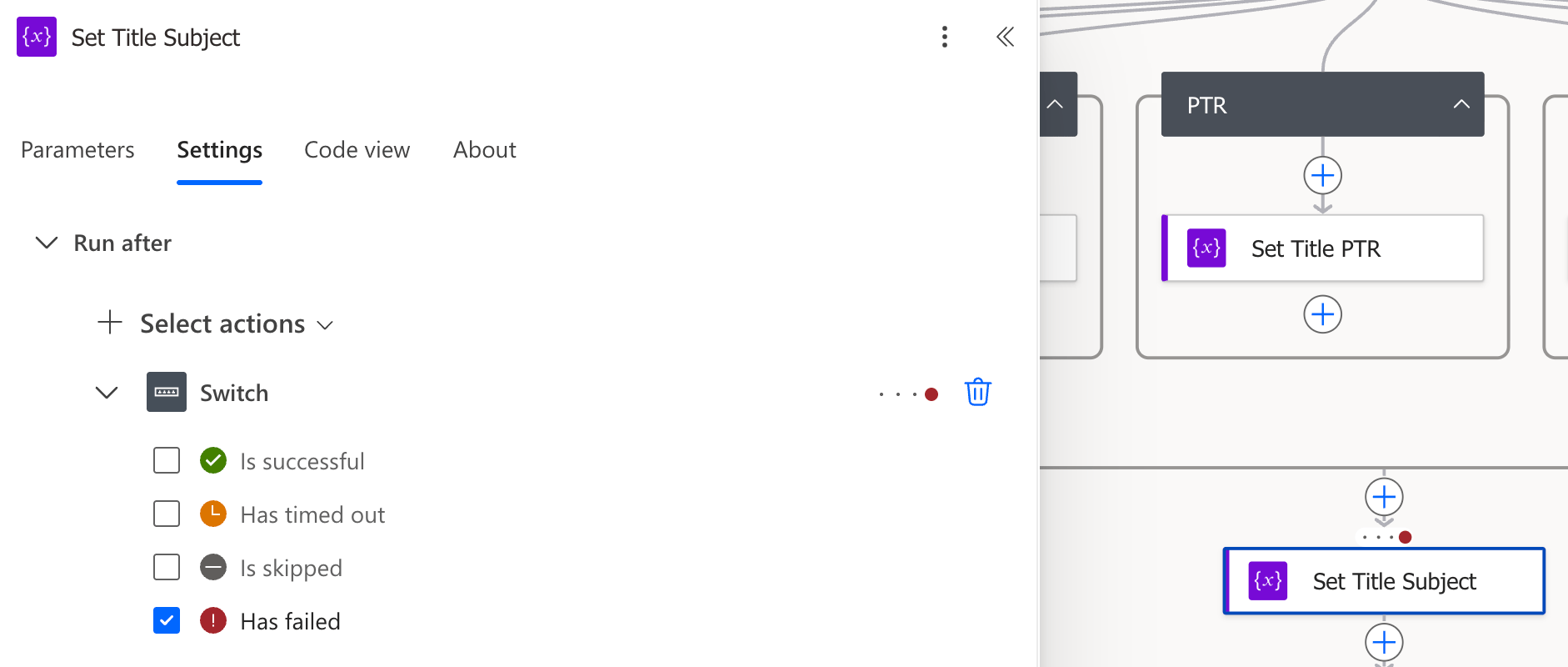
7. Check Action
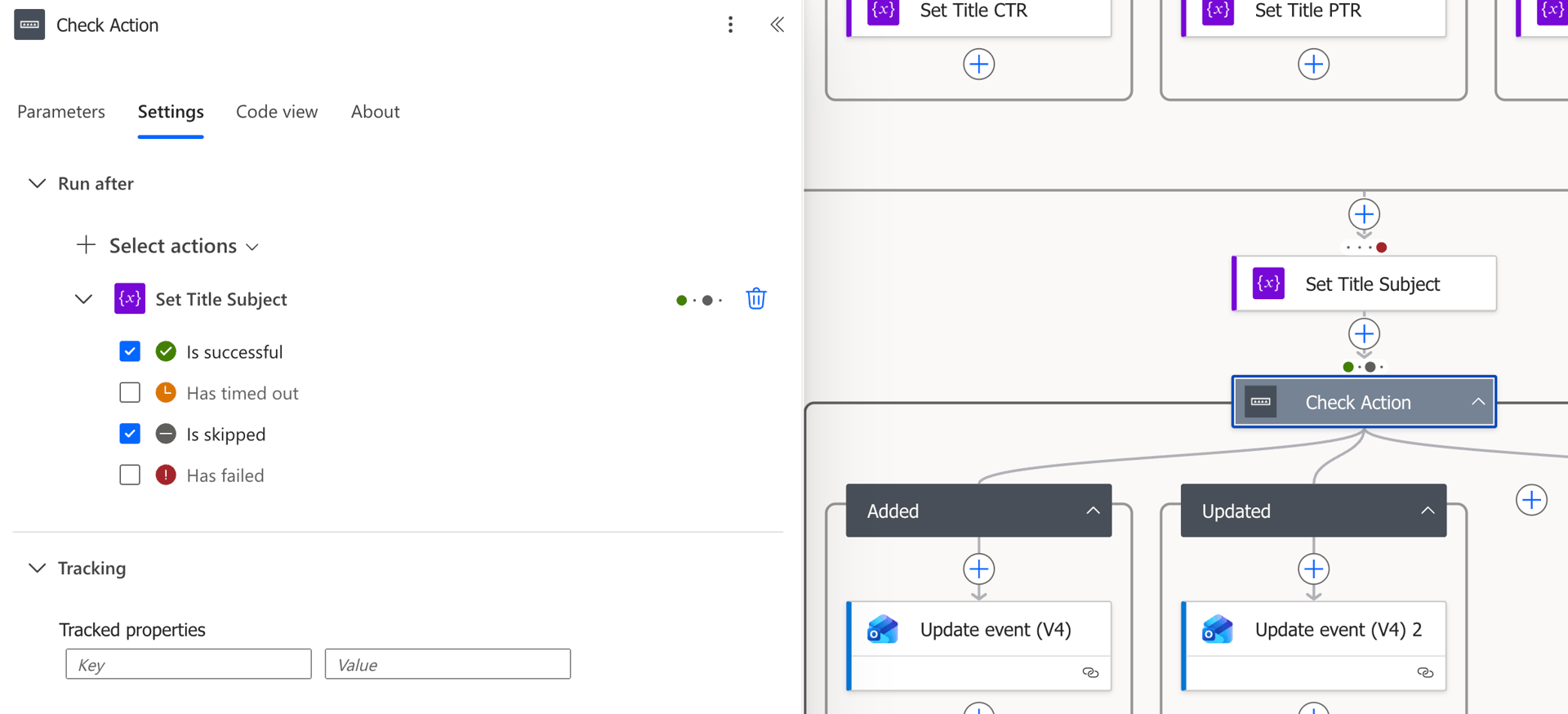
Once the Title variable has been finalized, the flow moves to the Update Event action. This step is designed to be highly resilient:
- Universal Execution: Using the “Configure Run After” settings, I ensured this action runs whether the previous Step 5 (the Switch or the Fail-Safe) was Successful or Skipped.
- Logical Flow: If the subject didn’t start with “TASK”, the transformation was skipped; if it did, the transformation was successful. In both scenarios, the flow now has a valid
Titleto work with. - The Suffix: The action then updates the Outlook event with the new title, ensuring the “-PA” tag is appended to mark the event as processed.
8. The result?
The result? A complete shift in my daily workflow. Now, when I glance at my iPhone widget, I immediately see the activity type and the client name, without ever needing to open the app.
The complete Flow
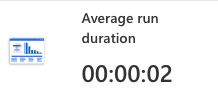
The average run duration of it?
The Win
By the time my iPhone vibrates with a notification, the flow has already processed the event.
- Before:
TASK88219 - Confirmed Customer Project - The Automation Blog - After:
CCP - The Automation Blog -PA
Automation isn’t just about big data; it’s about reclaiming control over rigid systems and adapting them to our own productivity needs.