FIELD NOTE // INSTAGRAM AUTOMATION
Automating Recipe Extraction
Automating Recipe Extraction: From Social Media to Notion
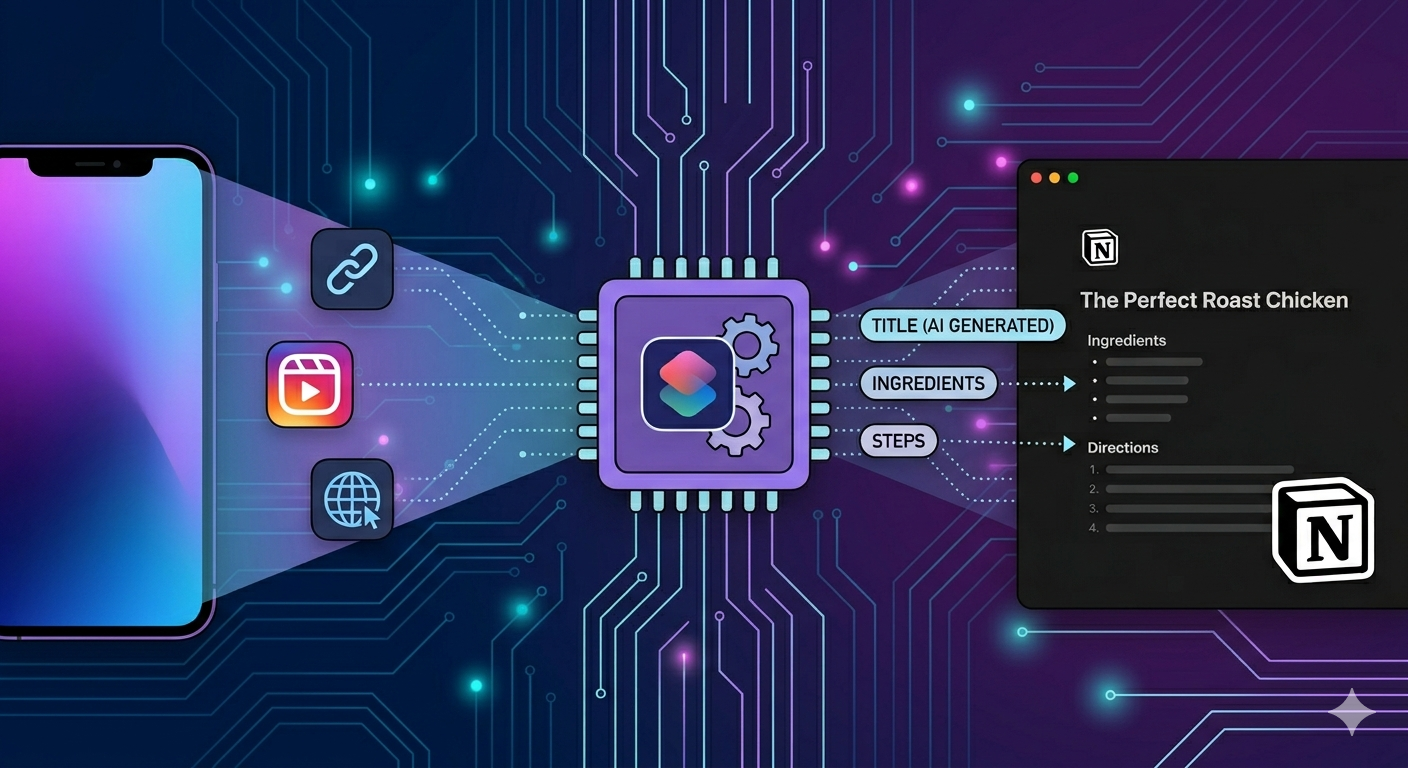
We’ve all been there: scrolling through Instagram or TikTok, landing on a mouth-watering reel, and hitting that “Save” button, only for the recipe to disappear into a black hole of forgotten bookmarks. To bridge the gap between social media inspiration and actual cooking, I’ve built a seamless extraction workflow. Instead of manually typing out ingredients or taking dozens of screenshots, I created an automation that does the heavy lifting for me. By simply sharing a link to an iOS Shortcut, the system parses the content, identifies the key components, and instantly generates a structured page in Notion, with list of ingredients and step by step to reproduce it, without the need to watch the video again.
This isn’t just a simple copy-paste. The automation is designed to:
- Identify & Extract: It scans the web page or reel description to isolate ingredients and cooking steps.
- AI-Powered Context: It intelligently invents a clear, descriptive title based on the actual content it finds.
- Zero-Friction Storage: It bypasses the mess of browser tabs, creating a clean, formatted entry in your personal Notion database in seconds.
The Tech Stack: Behind the Scenes
I built a simple three-step process that avoids the use of 3rd party software, and works directly on your iPhone.
The Shortcut
- Trigger: iOS Shortcuts – It grabs the URL from the share sheet and extracts the raw HTML of the page.
- The Brain: OpenAI (GPT-4o) – It receives the messy HTML, ignores the noise (ads/menus), and extracts only the title, ingredients, and steps.
- The Vault: Notion API – It takes the structured data and instantly builds receipe page
The Step-by-Step Process
Step 1: The iOS Shortcut Trigger
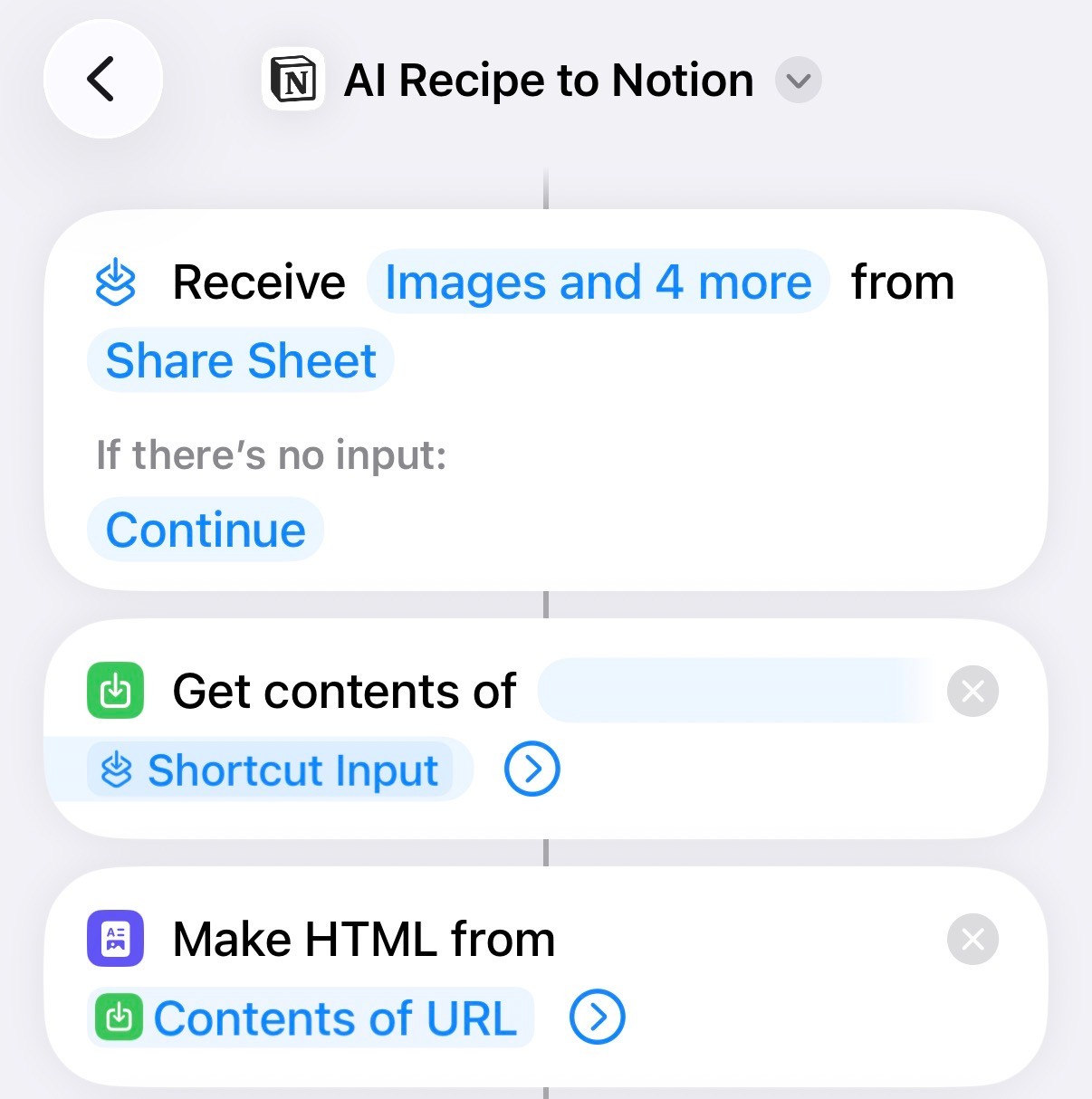
Everything starts with the Share Sheet. When you’re on a website or a social media reel, you trigger the Shortcut by sharing the link to the post, and selecting the “AI Receipe to Notion” Shortcut.
- The Shortcut uses the
Get Contents of URLaction. - Instead of just getting the text, it captures the full HTML source.
Step 1: retrieve the content
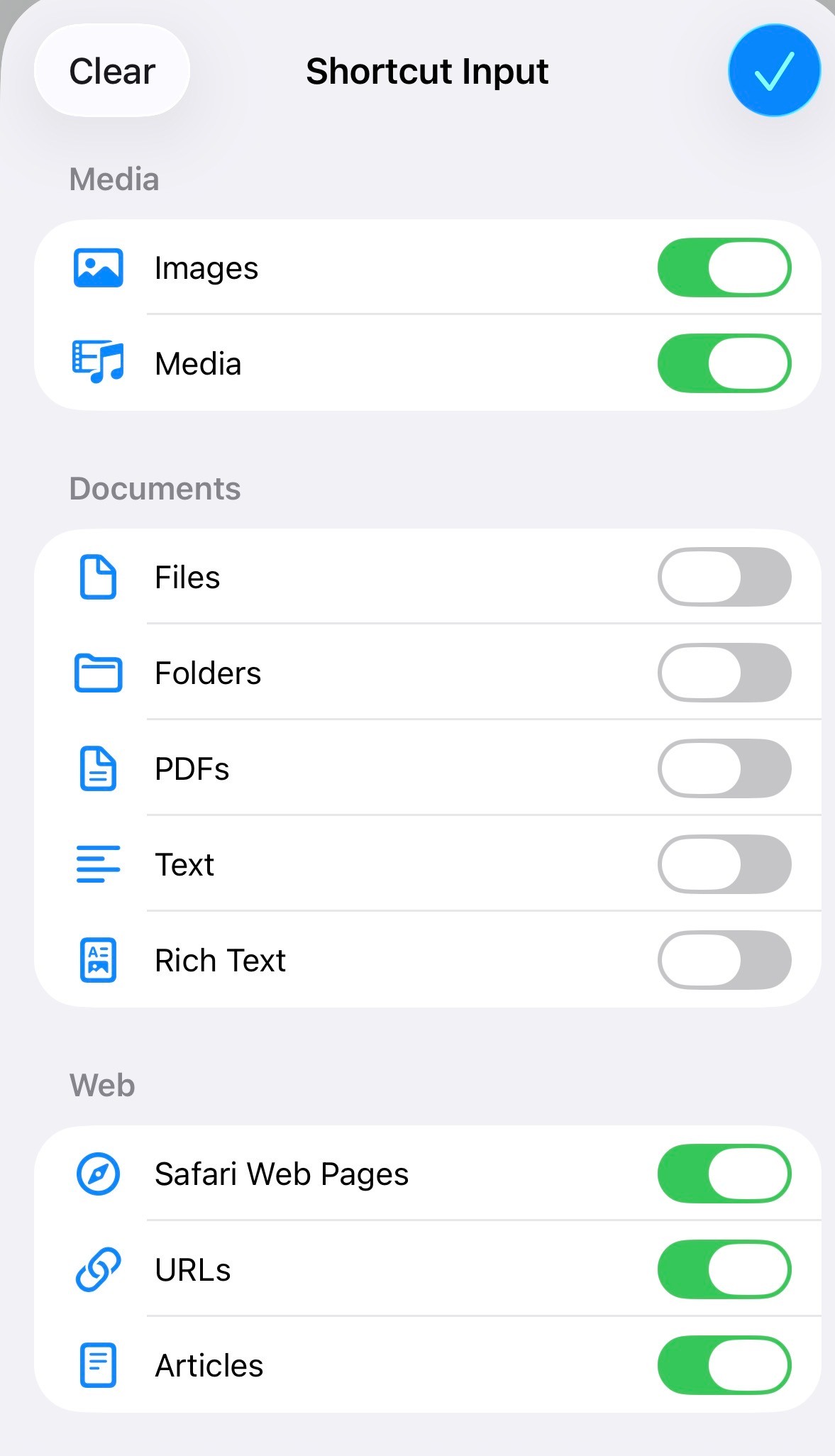
Filtering the input that can be passed to the Shortcut
Step 2: The AI
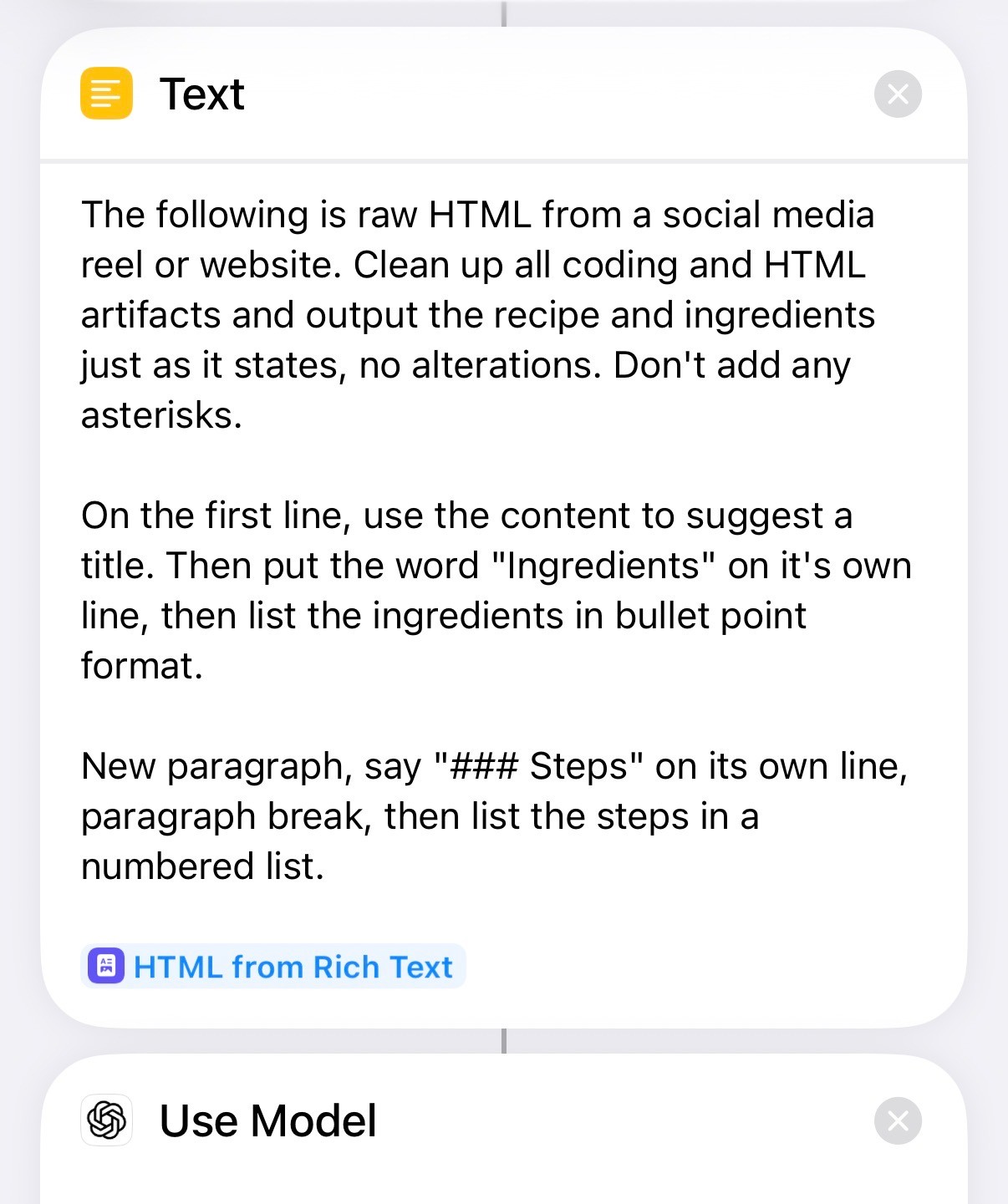
The Shortcut uses installed ChatGPT App to process the HTML
- The Prompt: a system prompt tells the AI to extract the receipe and how i want the output formatted
- The Intelligence: AI looks through the tags and scripts to find the actual recipe content, ignoring the “noise” like ads or related articles.
Step 3: Data Structuring
The AI returns a response with the format specified. This is the crucial part because it separates the data into clear categories:
Name: For the Notion page title.Ingredients: with a list of ingredientsSteps: with a step by step explanation
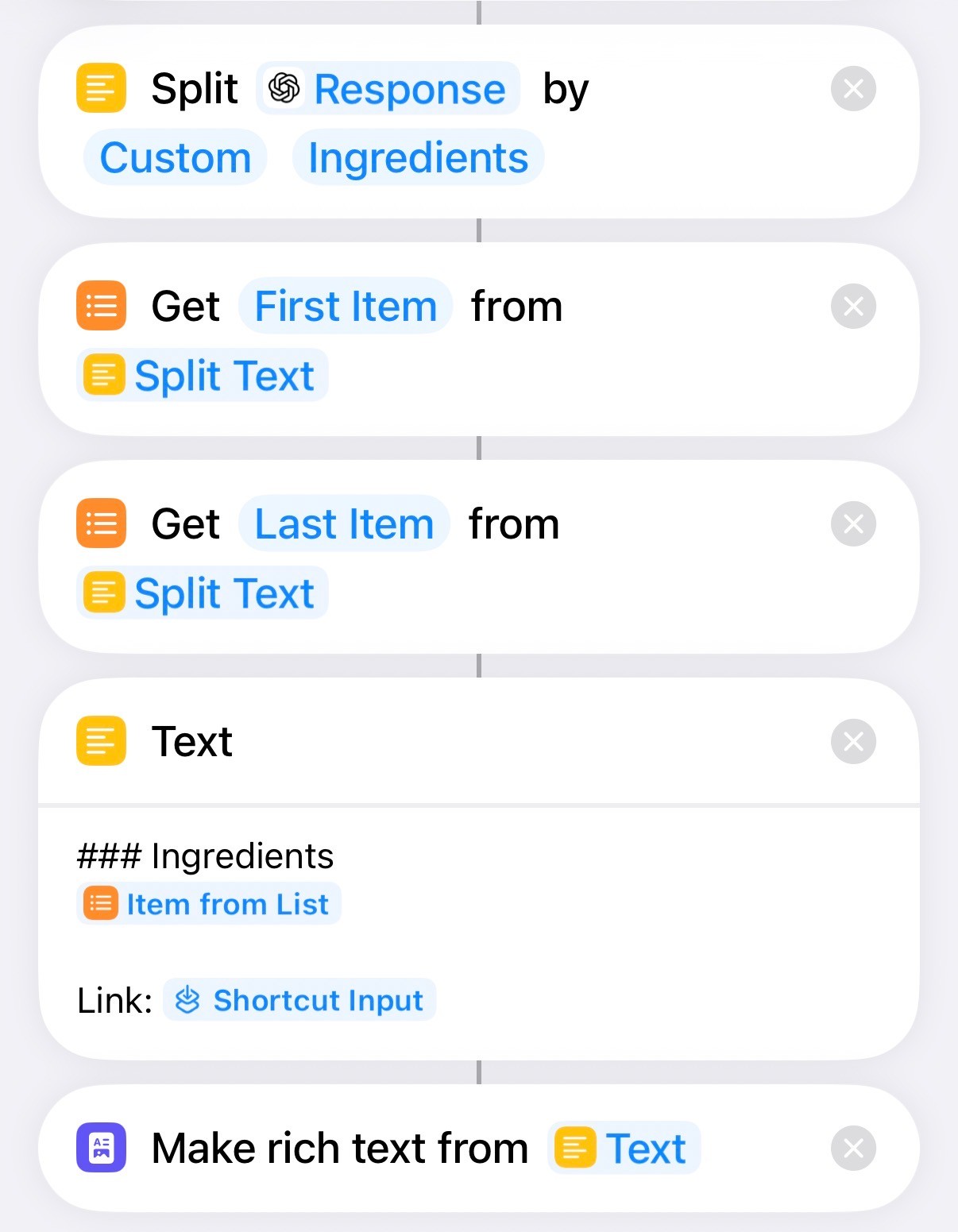
The system splits the output into two distinct sections: a comprehensive list of ingredients followed by the chronological cooking steps.
The content is structured using Heading 3 (###) for clear sectioning.
Below the Ingredients and Steps headers, the original source is preserved via the Link captured from the share sheet.
Finally, the automation generates Rich Text to convert the raw output into a clean, Markdown-formatted text to be used in Notion.
Step 4: Creating the Notion Page
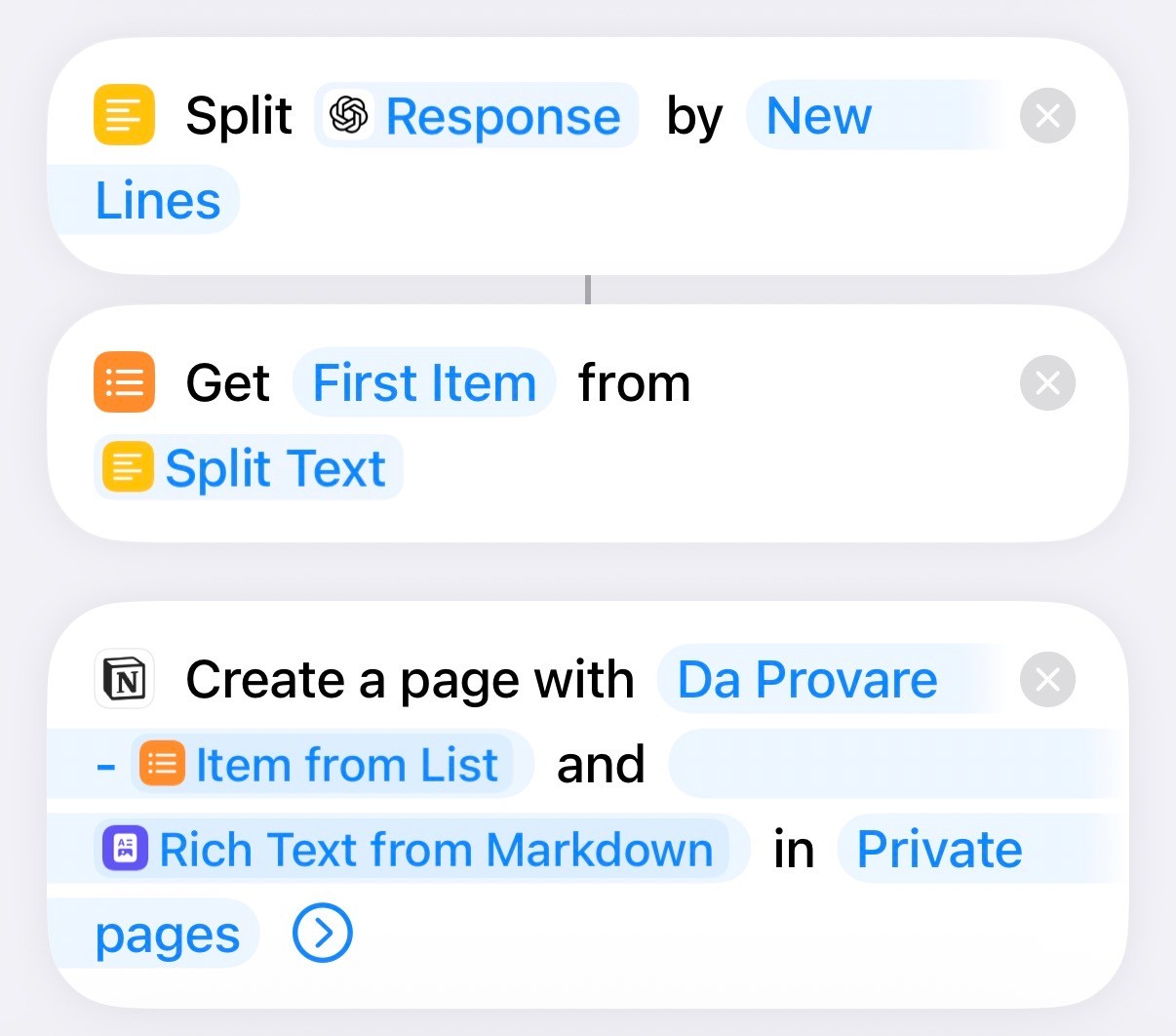
The Shortcut parses the AI response using line breaks, allowing it to isolate the title as the primary element. It then generates a new page in Notion labeled “To Try - [AI Title]”, creating a dedicated staging list for testing recipes before they are formally moved to my main collection.
Conclusion
This automation does more than just save time during meal prep by removing the need to re-watch videos repeatedly; it transforms a fleeting social media moment into a structured “To-Try” list directly inside my notes.
Beyond the kitchen, this project serves as a practical blueprint for leveraging AI on mobile. It demonstrates how we can move past simple chatbots and use our phones to automate complex workflows, turning raw digital content into organized, actionable assets on the go.