
FIELD NOTE // GOOGLE SHEETS
01 - The Brain
The “Excel is not a Database” Dilemma
When we first started, I spent a lot of time thinking about the best way to store our data. Naturally, my first thought was a professional database like MySQL. However, we had very specific constraints. We needed a system that was:
- Easy to use and to update (for both of us).
- 100% Free (no hosting costs).
- Accessible anywhere, from any device.
As I evaluated a traditional DB, several roadblocks appeared:
- Infrastructure: Where would we host it without monthly costs?
- Security & Access: How could we keep the data private yet easily accessible from the internet?
- Mobile Agility: If a club changed a lineup last minute, how could we update the record from a smartphone in seconds?
Eventually, I made a pragmatic choice: I turned Google Sheets into our main Database. It fit our needs perfectly and, thanks to Google Apps Script, I could transform a simple spreadsheet into a “superpowered” backend.
💡
The Choice Choosing Google Sheets wasn’t about a lack of technical skill; it was about choosing the right tool for the MVP (Minimum Viable Product) phase. It allowed us to iterate fast without worrying about server maintenance.
What you see today is the result of countless hours of iterations, manual tweaks, and architectural rethinking. It didn’t start this way, but it evolved into the perfect engine for our project.
Data Architecture
We needed a structure that was visually intuitive, scalable, and—most importantly—easily programmable via Apps Script. The goal was to transform a flat table into a relational-like system.
The Clubs List
This is our “Source of Truth.” It’s a central repository where we manage the status of every club. At the moment, the database tracks 207 active rows, organized to provide an immediate overview of the entire network.
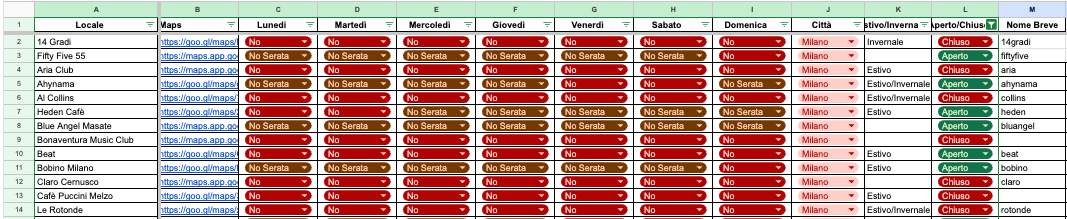
Here is how the data is structured:
-
**Column A Club Name:** The official name of the club. -
**Column B Maps:** A shortened Google Maps URL for quick location sharing. -
**Columns C-I Weekly Schedule:** One column for each day of the week, using a specific status logic: - Yes: The club has a scheduled party.
- No: The club is open, but no flyer has been uploaded yet (acting as a “pending” flag).
- No Party: The club is closed or has no events on that day.
-
**Column J City:** The primary city/territory the club belongs to. -
**Column K Seasonality:** A toggle for Summer/Winter operations. -
**Column L Global Status:** A master switch to mark a club as currently Active/Inactive. -
**Column M Short Name:** A standardized slug used to sync perfectly with the folder structure in Google Drive.
⚒️
The naming convention trick Column M (Short Name) is our “Primary Key”, it is used to rename flyers on Google Drive, and to be sure we don’t use the same slug 2 times. Conditional formatting has been applied on the column turning duplicate cells in red. In case of duplicates we can easily identify them and correct.
The Manual Era: A Logistical Nightmare
In the beginning, the project was 100% manual. Every single day, Kevin and I had to perform a grueling routine just to keep the page alive:
- Scouting: Scan the “Masterlist” for every club marked as “No” (open, but with no flyer saved).
- Social Hunting: Manually check dozens of Facebook and Instagram pages to find the latest event flyer.
- Manual Upload: Download the image and re-upload it to our specific Google Drive folder.
- Data Entry: Manually switch the status from “No” to “Yes” in the spreadsheet for that specific day.
- The Reset: The day after the party, we had to go back into the sheet and reset all the “Yes” statuses back to “No” to prepare for the following week.
The cost? We were spending at least 2 hours every single day on these repetitive tasks. We weren’t creators; we were manual data processors.
This was literally us:
We knew this wasn’t scalable. We needed a technical solution, and we needed it fast.
The First Breakthrough: “AutoNo”
This was my very first automation for the project. I had never touched Google Apps Script before, but this was the turning point that changed everything.
I called it “AutoNo”. It’s the simplest script in the entire ecosystem, but its impact was massive. It solved our biggest headache: the manual reset of the database.
The Challenge
Every week followed a frustrating pattern. Once a party was over, the “Yes” status in our spreadsheet became stale data.
If we didn’t manually reset every single club back to “No” immediately after the event, we couldn’t tell which clubs actually had a flyer ready for the next week and which were just leftovers from the previous one.
Manually hunting through 200+ rows every morning to “clean up” was the definition of a low-value, high-error task. I needed a way for the database to self-clean while I was asleep.
The Logic
Every day at 1:00 AM, a time-based trigger (cron-job) executes the script.
- It identifies the current day.
- It targets the column representing “two days ago” (to ensure the event is fully over).
- It scans for every “Yes” status and automatically flips it back to “No”.
Example: On Wednesday at 1:00 AM, the script targets the “Monday” column. Every club that had a party on Monday is instantly reset to “No,” ready for the next week’s scouting cycle.
The Impact
Setting this up was technically simple, but it was a game-changer for our mental health. It allowed us to sleep without worrying about the state of the database.
This was me the first time the execution log showed “Success”:
The Evolution: AutoYes
If AutoNo was about cleaning up, AutoYes was about moving forward.
The Challenge
Even after we uploaded a flyer to Google Drive, we still had to manually open the spreadsheet and toggle the status to “Yes”. It was a small, repetitive task, but doing it dozens of times a day was a massive waste of mental energy. It was the perfect candidate for automation.
The Logic
I developed a second script that triggers every day at 6:00 PM. It acts as a bridge between our storage and our database, monitoring the “Outbound” folders for the next 5 days of scheduled posts:
- File Scanning: The script reads the list of all uploaded images in the Drive directory.
- Key Matching: It extracts the filename and matches it against Column M (Short Name) in our Clubs Spreadsheet.
- Automated Check-in: Once a match is found, the script identifies the correct date/column and automatically flips the status from “No” to “Yes”.
The Win
This transformed our spreadsheet into a live, visual dashboard. By simply looking at the grid, we could instantly see which clubs were “green-lit” for posting and which were still missing content. We stopped being “data entry clerks” and started focusing solely on content curation and growth.
The Command Center: Manual Override
Now that the ecosystem was fully automated, the spreadsheet handled itself. But what if we needed to force a sync right before posting?
The Challenge
Scheduled triggers (cron-jobs) are great, but they lack flexibility. I needed a way to manually trigger AutoNo or AutoYes on demand, without opening the script editor or touching a single line of code.
The Logic:
I created a dedicated sheet named “Scripts” that acts as a manual dashboard. Instead of a complex menu, I developed an onEdit trigger script that monitors changes:

-
**Column A Script Name:** A clear label for each automation. -
**Column B Manual Trigger:** A simple checkbox. When flagged, the onEditscript detects the change, identifies the row, and executes the corresponding function. -
**Column C Last Execution:** A timestamp showing exactly when the script last ran. -
**Column D Live Status:** A dynamic feedback field. While the script is running, it shows “In Execution”; upon finishing, it switches to “Completed” (or “Error” if something goes wrong). -
**Column E Execution Time:** Shows the duration (in seconds) of the process.
🤖
The Magic The best part? Columns C, D, and E are updated automatically even during the scheduled 1:00 AM and 6:00 PM runs. This gives us a full audit log to monitor the “health” of our automations at a glance.
The Win
With this architecture in place, our spreadsheet is now a self-sustaining ecosystem. It stays perfectly in sync without human intervention, provides clear execution logs for every process, and offers a mobile-friendly control console.
Whether we are at home or on the go, we can trigger, monitor, and override our entire automation stack from our smartphones—anytime, anywhere.
The best part? We built a professional-grade backend for $0. 🎉